Home Security Solutions is rogue anti-virus program (I really hope its the last one this year). Its pretty much an exact copy of the Microsoft Security Essentials. I mean the graphical user interface not the actual antivirus engine. Home Security Solutions is distributed through the use of infected websites, Trojan downloaders, and software vulnerabilities exploited by popular exploit kits. I think this time cyber crooks use the BlackHole exploit kit, which would cost $2000 for an annual licence. What makes this virus unique is that it fills up your computer with randomly named harmless files and then detect those files as Trojans, keyloggers, rootkits, etc. Home Security Solutions pretends to scan your computer for malicious code thus creating countless pop-ups about critical infections and claiming that your computer cant be fix unless you purchase the bogus program. We already dont want to pay full price for things, so paying for HomeSecuritySolutions is not a good idea folks. To remove Home Security Solutions malware from your computer, please follow the removal instructions below.
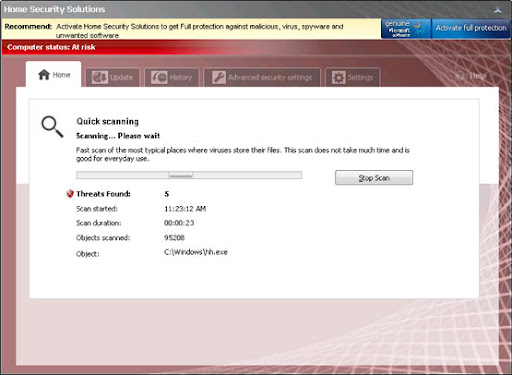
Home Security Solutions blocks the following anti-virus programs: Microsoft Security Essentials, ESET NOD32 and AVG. It does this buy modifying Windows Registry. Of course, it may block other legit AV products too. What is more, this scareware modifies Windows Hosts file and changes LAN settings. Thankfully, this scan be fixes very easily and we will show you how (see removal instructions below). Home Security Solutions runs from Application Data or PorgramData folders. Additional process runs from Windows Temporary folder.
Websites associated with this rogue antivirus program:
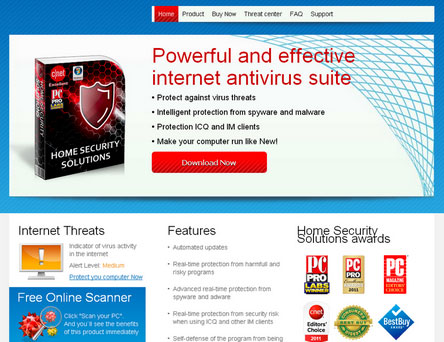
OK, so the easiest way to remove Home Security Solutions from your PC is to use debugged registration keys and then run a full system scan with legitimate anti-malware software. In case the keys dont work, please follow the alternate removal guide outlined below. If you thought that Home Security Solutions was a real products and paid for it, please contact your credit card company immediately and dispute the charges. If you need extra help removing Home Security Solutions virus, please leave a comment below. Good luck and be safe online!
Quick removal guide:
1. Open Home Security Solutions. Click the "Activate full protection" button. Enter one of these debugged registration keys to register this rogue application. Dont worry, this is completely legal.
K7LY-R5GU-SI9D-EVFB
K7LY-H4KA-SI9D-U2FD
U2FD-S2LA-H4KA-UEPB
Once this is done, you are free to install anti-malware software and remove the rogue anti-virus program from your computer properly.
2. Download recommended anti-malware software (Spyware Doctor) and run a full system scan to remove this virus from your computer.
3. To reset the Hosts file back to the default automatically, download and run Fix it and follow the steps in the Fix it wizard.
Alternate Home Security Solutions removal instructions:
1. Reboot your computer is "Safe Mode with Networking". As the computer is booting tap the "F8 key" continuously which should bring up the "Windows Advanced Options Menu" as shown below. Use your arrow keys to move to "Safe Mode with Networking" and press Enter key. Read more detailed instructions here: http://www.computerhope.com/issues/chsafe.htm

NOTE: Login as the same user you were previously logged in with in the normal Windows mode.
2. Launch Internet Explorer. In Internet Explorer go to: Tools->Internet Options->Connections tab. Click Lan Settings button and uncheck the checkbox labeled Use a proxy server for your LAN. Click OK. You may have to repeat steps 1-2 if you will have problems downloading malware removal programs.

3. Download recommended anti-malware software (Spyware Doctor) and run a full system scan to remove this virus from your computer.
4. To reset the Hosts file back to the default automatically, download and run Fix it and follow the steps in the Fix it wizard.
Associated Home Security Solutions files and registry values:
Files:
Read More..
Home Security Solutions blocks the following anti-virus programs: Microsoft Security Essentials, ESET NOD32 and AVG. It does this buy modifying Windows Registry. Of course, it may block other legit AV products too. What is more, this scareware modifies Windows Hosts file and changes LAN settings. Thankfully, this scan be fixes very easily and we will show you how (see removal instructions below). Home Security Solutions runs from Application Data or PorgramData folders. Additional process runs from Windows Temporary folder.
Websites associated with this rogue antivirus program:
- WWW5.THEBEST-AV-FORYOU.COM
- SECURE1.SMARTWASUITE.COM
- SECURE1.THEBEST-ARMYFYA.COM
OK, so the easiest way to remove Home Security Solutions from your PC is to use debugged registration keys and then run a full system scan with legitimate anti-malware software. In case the keys dont work, please follow the alternate removal guide outlined below. If you thought that Home Security Solutions was a real products and paid for it, please contact your credit card company immediately and dispute the charges. If you need extra help removing Home Security Solutions virus, please leave a comment below. Good luck and be safe online!
Quick removal guide:
1. Open Home Security Solutions. Click the "Activate full protection" button. Enter one of these debugged registration keys to register this rogue application. Dont worry, this is completely legal.
K7LY-R5GU-SI9D-EVFB
K7LY-H4KA-SI9D-U2FD
U2FD-S2LA-H4KA-UEPB
Once this is done, you are free to install anti-malware software and remove the rogue anti-virus program from your computer properly.
2. Download recommended anti-malware software (Spyware Doctor) and run a full system scan to remove this virus from your computer.
3. To reset the Hosts file back to the default automatically, download and run Fix it and follow the steps in the Fix it wizard.
Alternate Home Security Solutions removal instructions:
1. Reboot your computer is "Safe Mode with Networking". As the computer is booting tap the "F8 key" continuously which should bring up the "Windows Advanced Options Menu" as shown below. Use your arrow keys to move to "Safe Mode with Networking" and press Enter key. Read more detailed instructions here: http://www.computerhope.com/issues/chsafe.htm
NOTE: Login as the same user you were previously logged in with in the normal Windows mode.
2. Launch Internet Explorer. In Internet Explorer go to: Tools->Internet Options->Connections tab. Click Lan Settings button and uncheck the checkbox labeled Use a proxy server for your LAN. Click OK. You may have to repeat steps 1-2 if you will have problems downloading malware removal programs.
3. Download recommended anti-malware software (Spyware Doctor) and run a full system scan to remove this virus from your computer.
4. To reset the Hosts file back to the default automatically, download and run Fix it and follow the steps in the Fix it wizard.
Associated Home Security Solutions files and registry values:
Files:
- %AllUsersProfile%Application Data[SET OF RANDOM CHARACTERS]
- %AllUsersProfile%Application Data[SET OF RANDOM CHARACTERS]Quarantine Items
- %AllUsersProfile%Application Data[SET OF RANDOM CHARACTERS]HSSSys
- %AllUsersProfile%Application Data[SET OF RANDOM CHARACTERS] HSS.ico
- %AllUsersProfile%Application Data[SET OF RANDOM CHARACTERS]mozcrt19.dll
- %AllUsersProfile%Application Data[SET OF RANDOM CHARACTERS]sqlite3.dll
- %AllUsersProfile%Application Data[SET OF RANDOM CHARACTERS]HS149.exe
- %AllUsersProfile%Application DataHSMGPBWS
- %AllUsersProfile%Application DataHSMGPBWSHSVNAS.cfg
- %AppData%Home Security Solutions
- %AppData%Home Security SolutionsInstructions.ini
- %AppData%Home Security SolutionsScanDisk_.exe
- %AppData%Home Security Solutionscookies.sqlite
- %AppData%MicrosoftInternet ExplorerQuick LaunchHome Security Solutions.lnk
- %UserProfile%DesktopHome Security Solutions.lnk
- %UserProfile%Start MenuHome Security Solutions.lnk
- %UserProfile%Start MenuProgramsHome Security Solutions.lnk
- HKEY_CURRENT_USERsoftwareMicrosoftWindowsCurrentVersionRunHome Security Solutions = "%AllUsersProfile%Application Data82f49HS149.exe" /s /d
- HKEY_CURRENT_USERsoftwareMicrosoftWindowsCurrentVersionRunOnceHSS = "%Temp%scandsk311f_9012.exe" /cs:1
- HKEY_CURRENT_USERsoftware3
- HKEY_LOCAL_MACHINEsoftwaremicrosoftWindows NTCurrentVersionImage File Execution Options[RANDOM].exeDebugger = svchost.exe
- HKEY_CURRENT_USERSoftwareMicrosoftWindowsCurrentVersionPoliciesExplorerDisallowRun = 01000000
- HKEY_CURRENT_USERSoftwareMicrosoftWindowsCurrentVersionPoliciesExplorerDisallowRun[1...15]


